Choose the view for what you want to do
A larger screen does not mean you should show every available reading aid simultaneously. If you want to read through a familiar passage, a clean page layout may be enough. If you want to notice vocabulary, a view with word meanings can be more useful than two printed-style pages.
The two-page feature applies to Page view. Rotating another view does not turn it into a facing-page Mushaf. Choose the mode first, then evaluate how that mode uses the available space.
Swipe or scroll to compare.
| Your reading task | A view to try | Why |
|---|---|---|
| Follow the page layout | Page | A familiar Mushaf-page presentation; facing pages when space permits |
| Work through text and meanings | List | A continuous reading view for the passage and selected aids |
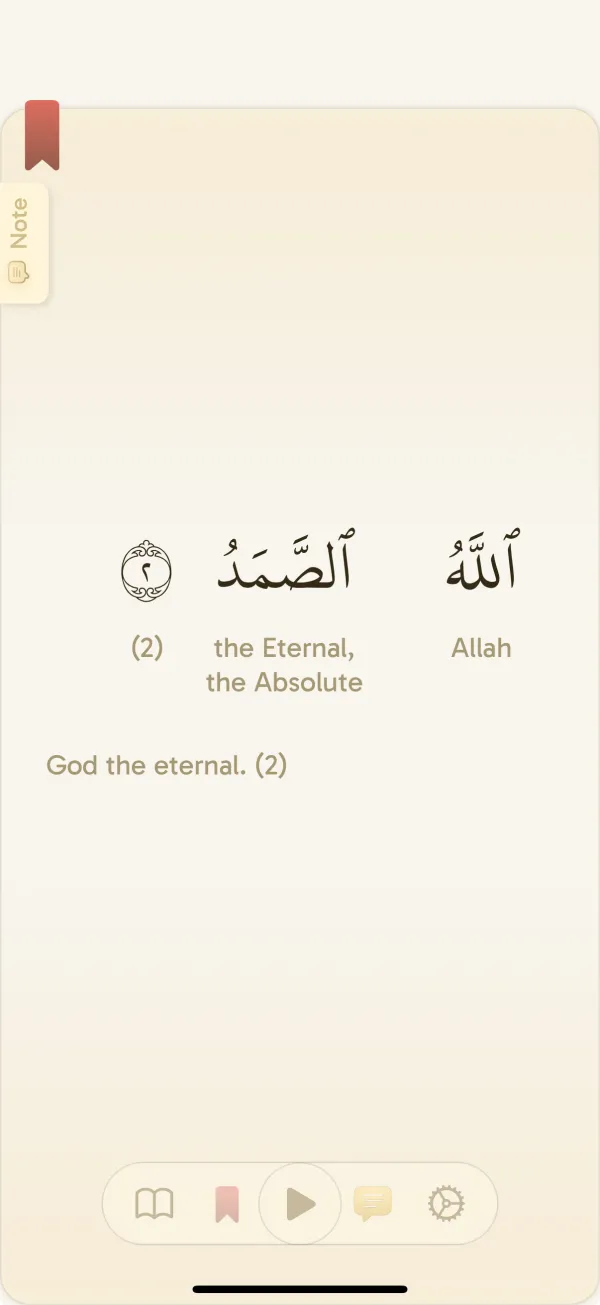
| Spend time on one verse | Verse by verse | A focused view for a smaller amount at a time |
Set up a facing-page session
The layout follows available window space, not merely the device name. An iPad running Yawm in a constrained window may show one page, while the same device in a wider landscape window can show two. A single page in that situation is an intended fallback.
In the facing-page layout, the odd-numbered page appears on the right. The reading direction follows the Mushaf spread; it does not follow the left-to-right order of English prose.
- Open Yawm on iPad and select Page view in your reader settings.
- Turn the device to landscape and make sure the system allows rotation.
- Give Yawm a sufficiently large window. A narrow multitasking window may keep a single-page layout.
- Open your passage and check that the page spread is comfortable to follow.
- Navigate to another spread, then settle on the position and orientation you want to use for the session.
If two pages do not appear
Do not treat “two pages” as the only successful tablet setup. A single page or verse-focused view may be the more comfortable choice when you want larger text or are using the iPad beside another task.
- Check the view: facing pages are a Page-view feature.
- Check orientation: the available window must be landscape, not merely the physical tablet turned sideways while rotation is locked.
- Check window size: make the Yawm window wider and reduce competing on-screen windows.
- Check the installed version: update to a version that includes iPad facing-page support.
- If it still differs from what you expect, capture the whole app window and tell support the iPad model, OS, app version, and view.
Choose your translation and audio before reading
Select your preferred translation and recitation in the reader setup. If you switch from a page-following session to vocabulary work, check the word-meaning source separately from the full verse translation.
A comfortable reading position matters more than maximizing the amount on screen. Put the iPad at a distance where you can follow the text without leaning in, and choose the view that keeps your place clear.
When you want to learn words, read the complete verse translation as well as the short meanings. A larger tablet gives you space; it does not remove the need to read the sentence in context.
Prepare a tablet session away from Wi-Fi
Offline reading and offline learning are separate. The prepared reader content can be available without a connection, but starting a vocabulary quiz needs internet. Audio downloads are tied to the reciter and surah, so changing voices requires checking the corresponding files.
- While connected, open Settings → Downloads and install the translations and reciter audio you intend to use.
- Confirm that the reader is using the downloaded translation and the reciter whose audio you prepared.
- Switch to your intended view, orientation, and window size before testing.
- Enable airplane mode, make sure Wi-Fi is off, and reopen the intended passages and audio.
- Reconnect and complete any missing downloads before relying on the setup while traveling.
Keep the next tablet session easy to begin
Choose a small daily goal, leave your reader ready at the next passage, and use an available iPad widget if a visible prompt helps. You can keep the tablet routine distinct from your phone routine without changing the purpose of the goal.
Try reading in your preferred view for a week before deciding you need another setup. Change the view when the task changes: facing pages for following the Mushaf, or a verse-focused view when you want to spend more time with the words.
Common questions
Can Yawm show two Quran pages on iPad?
Yes. Page view supports facing pages in a sufficiently large landscape window. A constrained or portrait window may use a single-page layout.
Why does my iPad show one page in landscape?
Check that you are using Page view and that the available app window is large enough. Rotation lock or a narrow multitasking window can prevent the facing-page layout.
Does the two-page layout apply to every reader mode?
No. Facing pages belong to Page view. List and Verse by verse use their own reading layouts.